Toast
Best practice
- Use for transient and non-critical feedback, e.g. the outcome of an action, or displaying a status update.
- Use clear and concise language that the user can understand quickly.
- Summarise multiple messages of the same kind into a single toast e.g. “Successfully uploaded 12 files.”
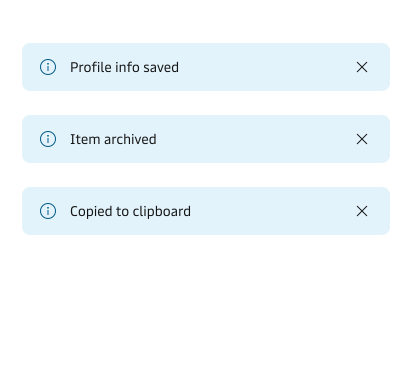
- When you cannot summarise the messages then display them sequentially by stacking up to 3 toasts at a time.
- Display duration time (default is 5 seconds) should allow users to read and understand the full message.
- Use inline buttons or links to provide simple actions to users. e.g. “Undo” or “View more”.
- If a toast is displayed for more than 10 seconds, always show the close action.
If you need to display persistent feedback messages, then use the Notification component. For high urgency where the user needs to take action before continuing, use the Modal component as a dialog.
See our System Feedback Guidelines for more information on system feedback in general.
Usage
Use the toast component for low-disruption feedback and feedback that is mainly task-triggered due to its immediate nature.
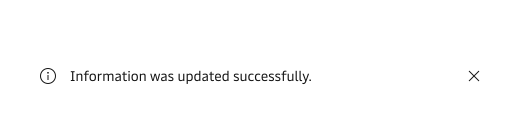
Placement
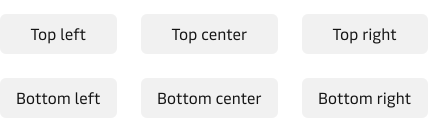
Toasts should be used in a consistent manner and should be place in the same location on the screen across the whole application. The default toast position is set at the top right corner. Display the toast on the same page as where the action took place so that it is easy for the user to understand the connection.
Stacking
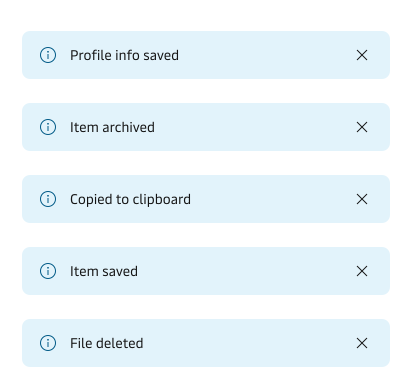
Avoid stacking more than 3 different toast messages at the same time to avoid increasing cognitive load.
Actions
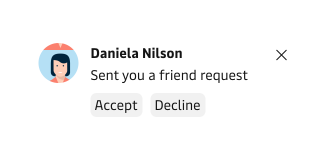
The toast is based on the notification component and support actions (Buttons and Links) that can be used to provide shortcuts and low-importance actions. e.g. “Undo”, “Retry”, “View more” etc.
Appearances
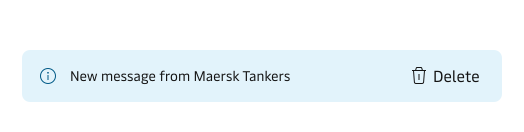
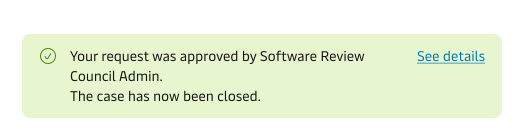
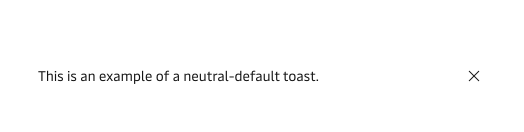
The toast has the following appearances:
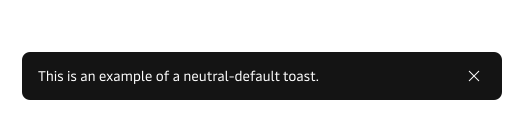
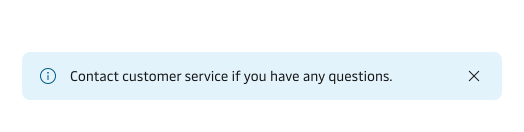
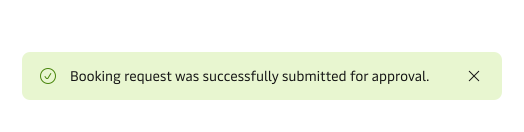
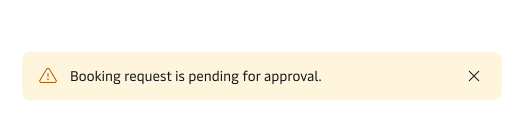
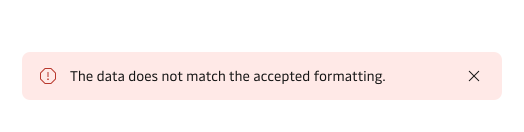
Avoid using a toast for critical error messages since users might not see it in time or be able to act on the feedback. The notification component is more suitable for communicating critical information that should be seen.
Accessibility
The toast component content is implemented as an ‘ARIA live region’ using aria-live=“polite”. When the toast appears, screen readers will announce the toast text only after any other more pressing announcements.
If a user has set up on their machine a preference to reduce motion, the animation on the toast will be disabled.
Avoid using toast for critical information that people need to act on immediately.
Toast might be difficult for people with low vision or dexterity to access. In case you want people to be able to use the keyboard navigation to reach the toast content, make sure to provide enough duration time before the toast is automatically discarded.