Step Indicator
Best practice
- Use the step indicator to guide the user through a linear process organised into 3 to 6 steps.
- If the process has more than six steps, consider simplifying it by combining or removing steps.
- Use when validating user input before progressing to the next step in the process.
- Use to complement a Back/Next navigation pattern in a linear sequence.
- Label each step shortly and concisely to communicate the step’s purpose.
- When using Warning and Error appearances, use a hint text to assist the user.
Usage
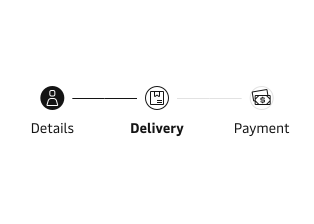
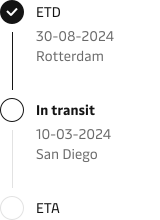
The step indicator is a reliable guide that displays and navigates users through the steps of any linear multistep journey. By showing the complete, current, and pending steps, it helps manage the user’s expectations and provides a sense of support throughout the journey. It is a great component that can be used for checkout, long forms and shipment tracking process.
Step states
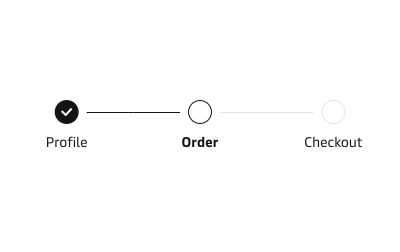
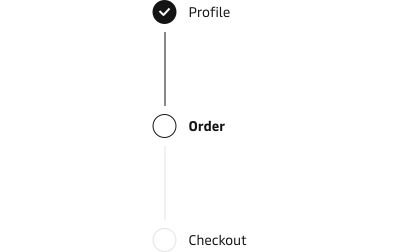
The step indicator steps can be put in 3 states to indicate either a completed step, a current step, or a future pending state. A single step indicator can have only one current step.

Warning appearance
Completed and current steps can change appearance to communicate warning information to the user when there might be a potential problem that does not necessarily stop the user from completing the current process. Hint text can be used in the available slot under the warning step to provide additional helpful information.

Error appearance
Complete and current steps also support an error appearance that can communicate to the user when a problem prevents them from continuing the process. Error messages should be clear and concise and provide actionable remedies to resolve the errors. Hint text can be used in the available slot under the error step to provide additional helpful information.
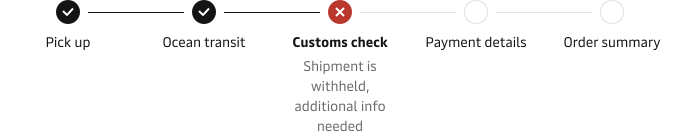
Depending on the context, use the warning or error appearance in combination with Notification or Toast components to give additional weight to the warning or error message.
Placement
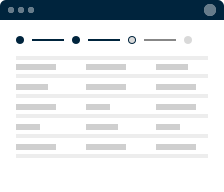
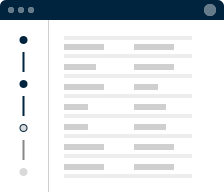
The step indicator’s purpose is to provide a visual representation of the user journey/process, and therefore, it is important for this component to be placed in a prominent position so users can refer to it and know how far they are in the linear process. Usual placement locations would be at the top of a page or in aside area, in some cases footer area. Typically the component is persistent and is not impacted by scrolling the content area e.g. a long form.
Responsiveness
The horizontal step indicator is aware of the available screen space, and by default, it will switch from horizontal to vertical orientation when the viewport or container width cannot accommodate all steps. Be mindful of this behaviour and account for potential layout changes.
Customisation
The step indicator steps can be customised to a certain level to support custom icons and labels with hint text. It is also possible to change the colour of the step markers. However, this is not recommended unless really necessary since it can impact the accessibility of the component.