Button
Best practice
- Keep a clear visual distinction between important and less important actions.
- Use filled buttons for the most important actions, e.g. submitting a form.
- Use the Secondary Filled Button when you want to emphasise the Maersk brand.
- Use outlined and plain buttons for less important actions, e.g. “Back” and “Cancel”.
- Use the rounded button sparingly, only when an action needs to stand out from surrounding actions, e.g. a floating “Chat” button.
- Do not mix normal and rounded buttons in the same row or group unless there is a clear semantic difference (e.g. floating vs inline actions).
- Do not use button labels that are ambiguous or open to interpretation – be descriptive.
- Always provide an accessible label for icon-only buttons so screen reader users can understand the action.
- Never hide or disable buttons that are essential for completing a task.
- Use sentence case for button labels.
- Use action verbs, e.g. save, download, edit.
- Combine the action verb with a noun when helpful, e.g. “Book a container“.
- Avoid vague labels, e.g. “yes”, “no”, “okay”.
Users rely on good and consistent labels when interacting with digital products. See our label guidelines for more information on how to write good labels.
Hierarchy
To guide users effectively, buttons follow a strict visual hierarchy based on prominence. Prominence determines how much a button stands out and indicates the importance of the action it performs. By selecting the correct prominence level: “high”, “medium”, or “low”, you ensure users can intuitively distinguish between primary calls-to-action and secondary or tertiary steps.
The button component comes in 3 different variants: “filled”, “outlined” and “plain”. The different variants make it possible to create the needed hierarchy and visual distinction between the important call-to-actions in a UI and the less important ones. Below is described the hierarchy of the buttons.
| Variant | Prominence | Regular button | Rounded button |
|---|---|---|---|
| Filled | High | Main actions, aim for one per screen or section | Use sparingly |
| Outlined | Medium | Secondary and alternative actions | Use sparingly |
| Plain | Low | Repetitive actions, links, or less critical tasks | Avoid usage |
Filled buttons
The filled buttons should be used sparingly and only for the main actions in the UI. If the UI has many actions with the same high importance, then consider using the outlined buttons.

Secondary filled button
The secondary filled button should be used very sparingly. It is a way to communicate the Maersk brand more directly in the UI and draw extra attention to the most important action on a page e.g. in a hero/stage element on a marketing landing page.
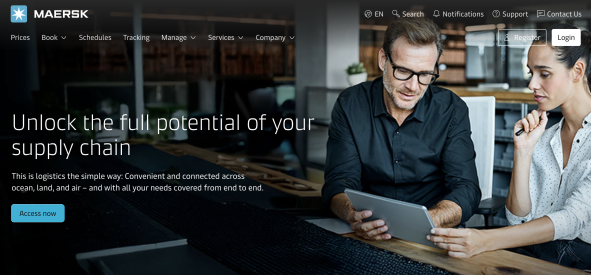
The primary filled button should still be used for most actions in the UI and often together with the neutral outlined button. See the recommended button combinations under the section Combinations.
This doesn’t apply to APM Terminals, since the APM Terminals brand colour (orange) is used for the Primary Filled Button.
Outlined buttons
Outlined buttons are used for medium important actions and are often used together with a filled button e.g. Confirm (filled) and Cancel (outlined). Outlined buttons are also useful in UIs that have many actions with medium or same high importance.

Plain buttons
Plain buttons have a visually low emphasis and are used for less important actions. Plain buttons can be used together with filled and outlined to create a tertiary action. See the recommended button combinations below.

Rounded button
The button component supports a rounded shape (with a fully rounded border radius). Use the rounded sparingly. Regular buttons remain the default choice for most actions.

Use the rounded shape when the action needs to stand out from the normal flow and shape of other actions on the page. It should be used sparingly and with intention. For example, persistent on-page helpers like “Need help?” floating chat button or circular controls for the content carousel slider.


Combinations
Combine button variants in a way that creates a clear hierarchy, allowing users to identify the most important action easily. The following button combinations are recommended.
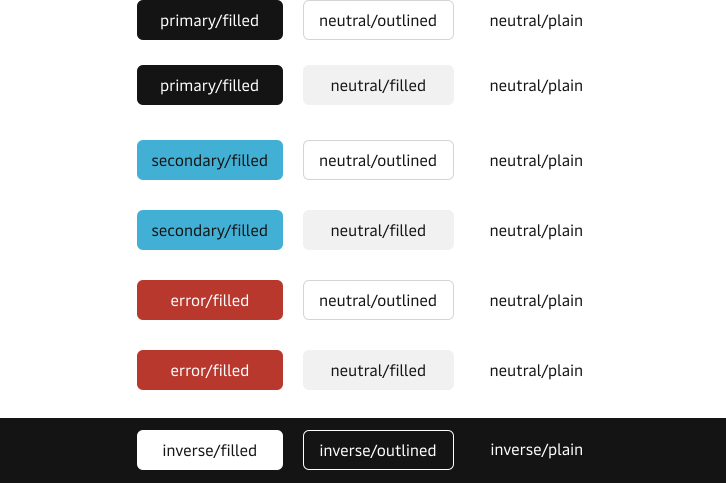
Within a combination, all buttons use the regular buttons. Rounded buttons are not recommended in form footers or table action rows.
Form placement
Align the primary action to the left with the rest of the form. Tabbing through the form will lead the user to the primary action first, which creates a linear and clear path to completion.
Place the secondary action to the right of the primary action.
Use regular buttons in forms; avoid rounded buttons in form footers to keep visual language consistent and predictable across the Maersk application.
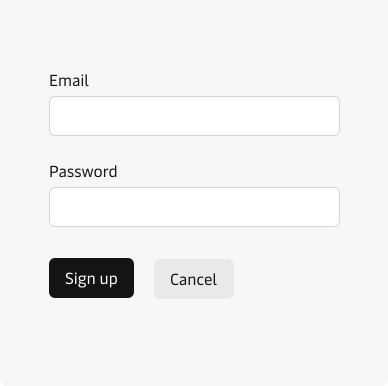
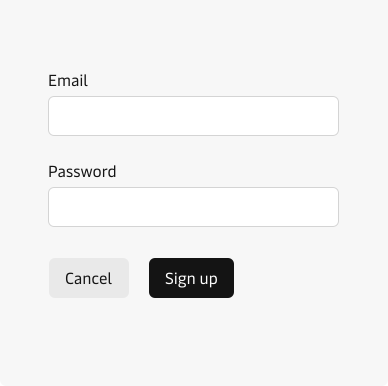
We recommend that you read our form design guidelines. The Guidelines cover many basic recommendations to be taken into consideration when working with forms.
Labels
All button labels should use English capitalization where we capitalize the first word and also capitalize proper nouns. We do not use ALL CAPS.


Icons
A button can contain an icon. By default, the icon is displayed before the label, but it can be configured to be a trailing icon when the context requires it.
It is also possible to have an icon-only button. Icon-only buttons have a smaller UI footprint but often carry high utility and should be used when screen real estate is scarce. Use icon-only buttons with actions that are universally understood and icons that the user is familiar with. e.g. Pencil icon when the action will lead to editing information.
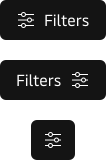
When using icon-only MDS buttons, ensure that a label value describing the action is supplied and the “hiddenlabel” property is set. This will ensure that the correct aria-label is rendered for screen-readers etc.
Icon only accessibility
For icon only buttons a ARIA-label is automatically added to ensure that users using screen readers can understand what the buttons do. It is therefore very important that we always add a clear and descriptive label to all our buttons.
Loading state
Each button has a loading state that should be used for a short indeterminate wait time between 2-5 seconds. The loading state reassures the user that the action is being processed. The loading state also prevents the user from activating or sending something more than one time and thereby reduces mistakes.
Don’t apply the loading state to all your buttons, but only the ones where a wait time between 2-5 seconds is expected.

Buttons as links
It is possible to display a link as a button with the Link Button component. This style of link works well for certain call-to-actions.