Accordion
Best practice
- Use accordions to hide sections of content and only show essential information upfront.
- Avoid using an accordion if all content is essential.
- Avoid using an accordion if the user needs to compare across sections.
- Keep section headers clear and concise.
- Each section should have a clear purpose.
- Ensure that the overall structure of the sections is logical.
- Limit the number of sections so it doesn’t become too overwhelming for the user (ideally 5-7 sections).
- Avoid placing accordions inside accordions, since it increases complexity.
Usage
Accordions can enhance the efficiency of information processing and discovery by organising content into manageable and scannable sections. However, because they hide information by default, it’s crucial to consider if an accordion is the right approach.
Do:
- Use to organise related content into collapsible and expandable sections, e.g. FAQs and lengthy structured content.
- Use when long content cannot be displayed all at once, and it is important that the user can scan the available sections.
- Use when the information is situation-based and not always relevant.
Don’t:
- Don’t use in cases where all the information is essential at the same time.
- Don’t use in cases where it is common to compare information across sections.
- Avoid using the accordion to hide important information and functionality.
Placement
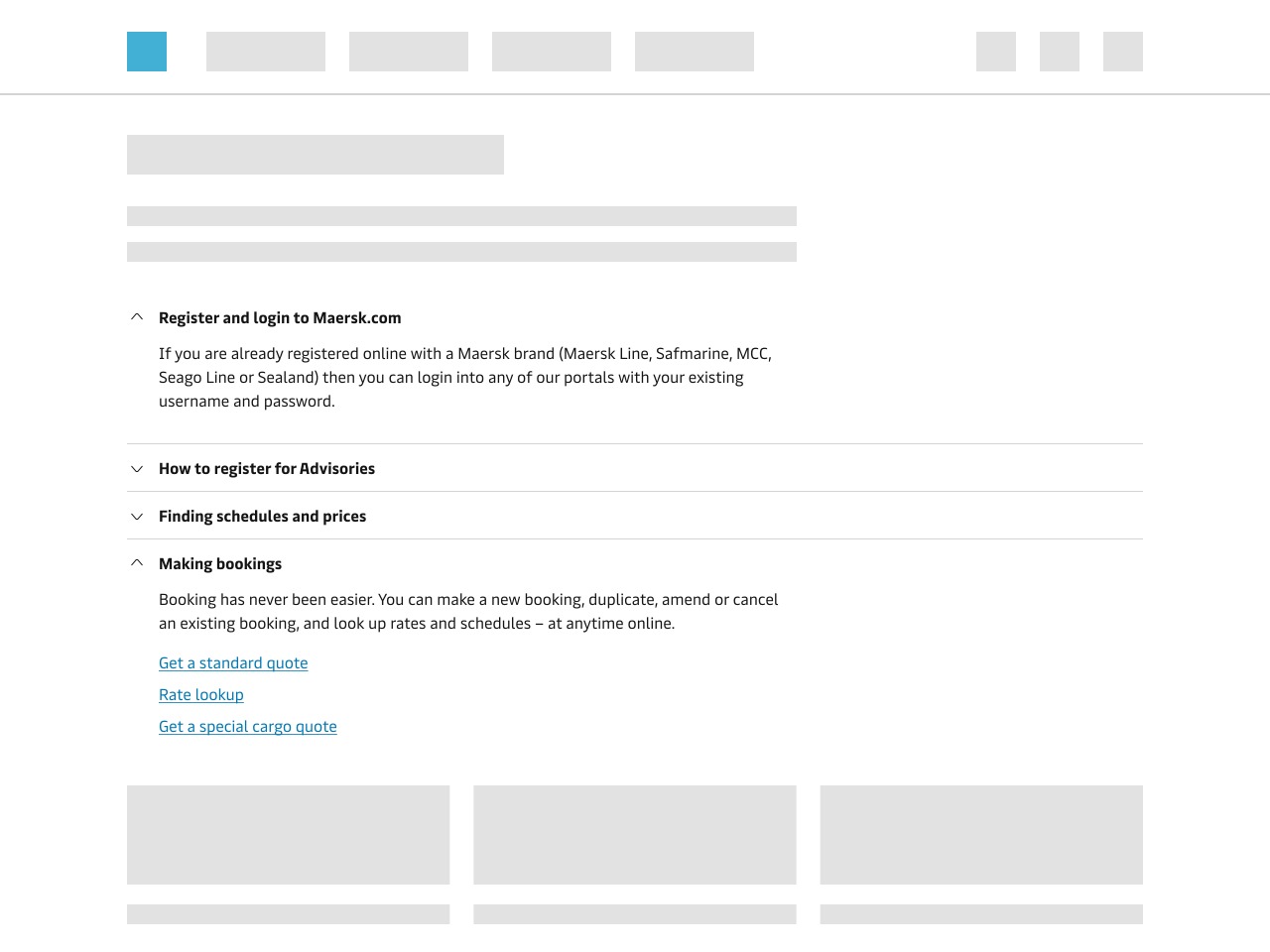
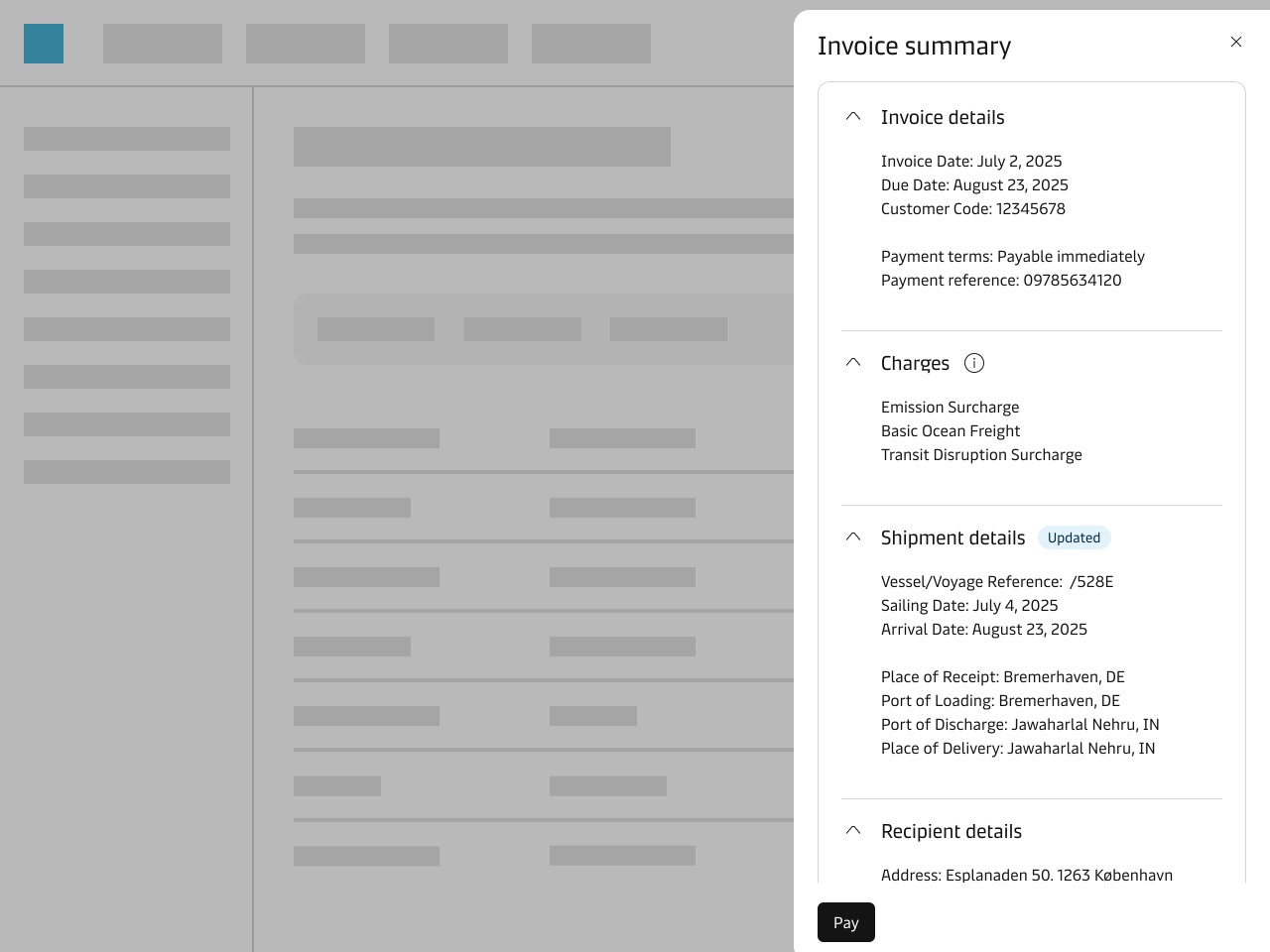
Accordions are usually placed in the main content area on a page, but they can, e.g. also be placed inside a Drawer or a Card. If you need an accordion-style navigation, like the one on this website, then use the Tree Navigation component.
Icons
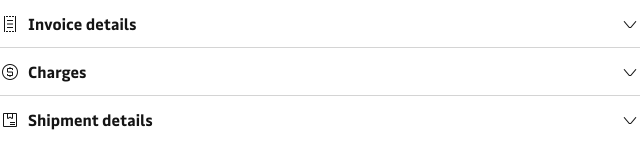
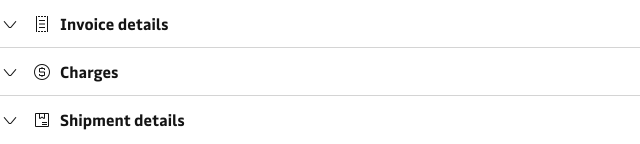
It is possible to add an icon to each section title. If you place an icon to the left, then it is recommended that you move the chevron to the right.
Single and multi-expand
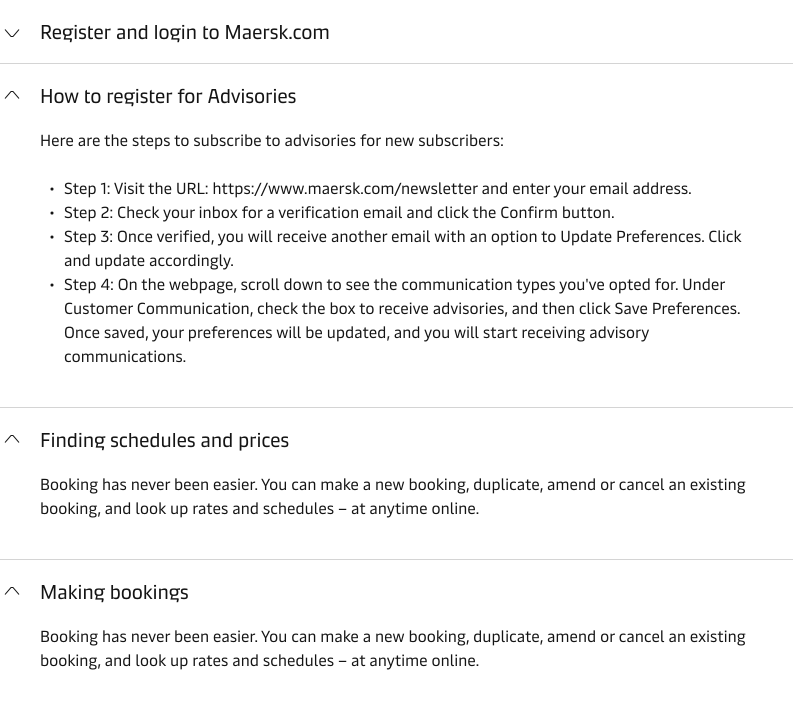
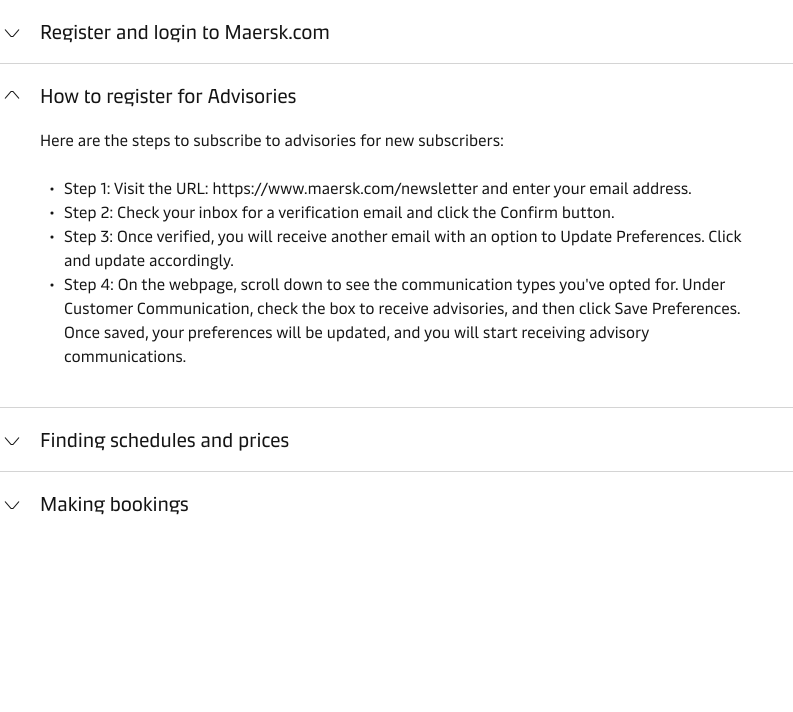
It is possible to set the accordion to expand only a single section at a time (single-expand, also called conditional accordion) or multiple sections at a time (multi-expand). In most cases, it makes sense to allow the user to expand multiple sections at a time, e.g. for FAQs. Only use single-expand in cases where the sections are mutually exclusive.
Content
Write clear and concise titles for each section in the accordion and make sure to structure them in a logical order. This helps the user find the right informatino. The same goes for the body text inside the section. If needed, the text can be split into paragraphs and get their own sub-headlines to make the text easier to digest.
Make sure that each section has a clear purpose that is distinct from the rest of the sections. For more info on how to write and format content, go to our Content Guidelines.
Accessibility
The accordion is accessible via keyboard using the TABS-key to navigate through each section and the ENTER or SPACE-key to expand and collapse the sections.