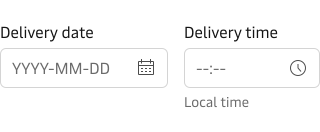
Input Date
Best practice
- Make it clear what kind of date format (YYYY-MM-DD) you are asking for. e.g. by using placeholder.
- When asking for a date from official document e.g. passport, match the input format of the original, so that it is easy for the user to copy.
- Use min and max dates to help prevent user error. The selectable date should be realistic for the context and application capabilities.
- When asking for a memorable date (e.g. date of birth) consider using 3 text inputs to represent the correct format.
- Display the weeks numbers in the calendar popover only when the context requires it and when users expect to see them by default.
- If you need to combine date and time use the input time as addition to the input date.
- Use understandable and contextual language for the input label that describes what the date is for.
- Don’t use verbs like enter, add, input etc in the label.
- Don’t add a colon ( : ) at the end of the label.
- Use the hint text to provide additional context and explanation.
We recommend that you read our Form Guidelines. The Guidelines cover many basic recommendations to be taken into consideration when working with forms.
Label
By default, the component has a top-positioned label. It is possible to change the position of the label to be left-positioned. We recommend that you use the top-positioned labels wherever possible, especially in forms. You can read more about why we recommend top-positioned labels in our form guidelines.
For information on how to write good and consistent labels - see our Label Guidelines.
Hint text & error state
Please see the Input component for details on hint text and error state.
Vanity variant
The component supports the “vanity” style variant.
Please read more about this variant on our form guidelines page.
Examples
Common scenarios of how this component could be used.
Date and time together
The following example uses the input time component for date and time input.