System Feedback
Providing users with the right feedback at the right time and context will minimise misunderstandings, create transparency of what is going on and fundamentally create trust in the system.
Components
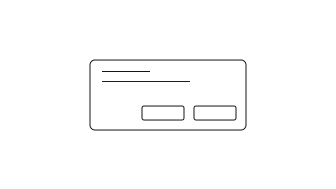
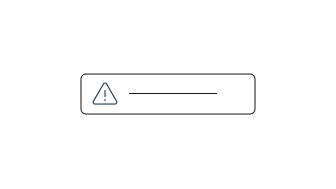
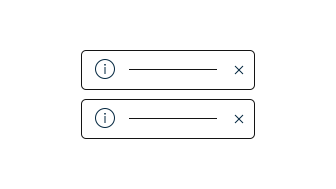
Different components can be used to give the user feedback on their progress and status of the system. Which component to use depends on the level of urgency, trigger type and the context. As a general rule - use:
- Dialog for high-urgency
- Notification for mid/high-urgency
- Toast for low-urgency.
You can read more detailed documentation on the dedicated component pages:
Triggers
Feedback messages can be displayed in different ways based on the used component. Independent of how the feedback is visualized there are two types of triggers that can dictate which component is more suitable to use in a specific context.
Task-triggered
Task-triggered feedback is a response to actions performed by the user to provide immediate feedback. Task-triggered notifications should be placed in close proximity to the interaction area or in a well-visible place to create a relation between the user input and the system output.
The immediate nature of this feedback puts the Toast as a suitable component to bring the feedback messages to the user’s attention.
System-triggered
A system-triggered notification conveys information about system-related issues or statuses. These are typically initiated automatically based on changes in the system that can impact the user’s journey e.g. “server connection lost”.
These feedback messages could be displayed when the user is idle and not interacting with the interface, which makes it important to not dismiss automatically the message. The Notification component is the recommended way to display system-triggered feedback.
Actions
Feedback messages often include either buttons or links to allow e.g. people to get more information or perform an action.
The feedback components support both inline and stand-alone placement of buttons and links. You can read more about actions in the individual component documentation.
Independent of the placement, keep actions and links in close proximity to any message that gives additional context to people of what outcome to expect.
For example, when using a full-width global notification that spans across the whole screen. Placing the buttons or links below the text will keep them in close proximity even on very wide screens where the width of the notification could expand more than originally intended.
Frequency
Frequency is an important aspect of providing both task-triggered and system-triggered feedback.
The general recommendation is to provide feedback messages only when it is necessary for people to receive additional information. For example, do not show a success feedback message after each click of action, only when the action is a key one to completing an important task.
It is a good idea to summarise feedback messages of the same kind to reduce the frequency of showing the same message in short intervals.
Lower frequency of displaying feedback messages increases the likelihood of people seeing and processing any feedback that is being communicated.
Placement
It is important to keep the placement of the different feedback messages consistent across the user journey e.g. always show the toast in the same place through the whole application. You can read more about the different placement options in the dedicated component pages:
Use prominent placement of feedback for high-urgency messages when it is fine to cause disruption in the user flow. For example, when asking people to make a choice to accept or decline a Cookie consent.
Accessibility
To ensure an accessible experience please make sure that:
- Any type of notification is clearly visible and accessible.
- People can navigate (dismiss, confirm) using a keyboard or assistive software.
- Motion and animation are disabled for people that have disabled it in their preferences.