Notification
Best practice
- Use sparingly to communicate important system-triggered feedback.
- Content should reflect the severity of the case and provide appropriate actions to the user.
- Communicate one message at a time in clear and concise language.
- Use easy-to-understand language (avoid technical terms).
- When action is required, use clear call-to-action terms. e.g. “Contact support”
- For high-urgency feedback, use a prominent placement. e.g. Full screen width notification below global navigation.
- For low-urgency feedback, use inline placement that brings the feedback closer to the context that it addresses.
If you need to display low-disruptive feedback that is mainly task-triggered, then use the Toast component. For high-disruptive feedback where the user needs to take action before continuing, use the Modal component as a dialog.
See our System Feedback Guidelines for more information on system feedback in general.
Usage
Use the notification component for medium to high-urgency in order to communicate mostly system-triggered feedback messages. Use to notify the user about important system information with a succinct message and when possible provide action to resolve any potential issues.
Placement
There are two main placements of notifications component - global notifcations and inline notifications.
Global notification
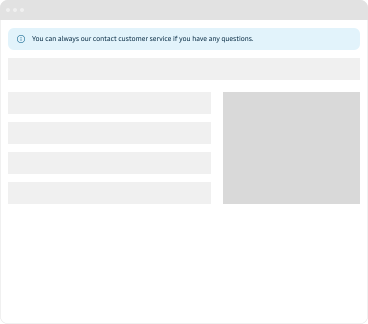
Notifications can be used on global level where the notification is placed at the top of the page/app. This placement is typically for messages and feedback that related to the whole page/application and have a mid to high-urgency.
Cases where a global Notification is a good choice:
- Communicate internet connection was lost.
- Upcoming maintenance.
- Bigger updates or changes to the application, site, or page.
Inline notificaton
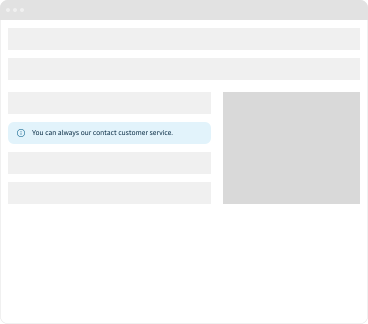
Notifications can also be placed inline within the page and is usally related to the specific section of the page or application. This kind of notifcations because of it placement usually have less urgency than the global notification.
Cases where an inline Notification is a good choice:
- Warning about information being internal only.
- Communicate outdated information or delays.
- Additional contextual information that is relevant to a specific section of the page or application.
Appearance
Use the different colour appearances and icons to clearly communicate the severity of the message.




Content
Always make sure that the user can read and understand the notification message within a few seconds. Keep the message short and use the words that people are familiar with.
When a notification component takes the full width of the page, make sure to break long feedback messages into several lines. This will prevent degrading the reading experience on very wide screens.
Actions
The recommended (default) placement for actions (Buttons or Links) is under the feedback message. That allows for actions to stay close to the description which gives context to people independently of how wide the notification component expands in the viewport.

It is also possible to display actions inline. If you use inline actions keep in mind they could become visually separated from the feedback message that might be providing important context for the user.

Permanence
Notifications can be either permanent or discardable
