Table
Best practice
- Left-align text.
- Right-align numbers and consider using monospaced numbers.
- Align headings with data.
- Apply a “less is more” approach to selecting and structuring the data
- Use icons, abbreviate and reduce redundancy to declutter the data
- Prioritise columns by importance and arrange them accordingly
- Preserve context when dealing with overflow and nested tables
- Allow the user to sort the data by clicking the column header
- Keep table decoration to a minimum
Implementations
The Maersk Design System offers two table options for developers:
- Table component located in the
@maersk/mds-components-corepackage. All examples on this page use this component. This supercedes the community developed web component located in the@maersk/mds-components-communitypackage. - CSS classes for constructing your own HTML tables. These can be found in our CSS foundations package
@maersk/mds-foundations
Headers & footers
Table headers communicate what data is being presented within each column and/or row and table footers are useful when summarisation of the displayed data is needed.
Headers
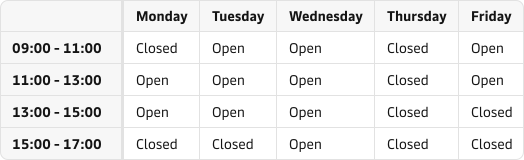
Most often table headers are positioned at the top row of a table. However, in some cases, it can be appropriate to ‘flip’ a table by using its first column to display headers. In rare cases a table may even need to have multiple headers to adequately describe the data, as in this example:
Header tooltips
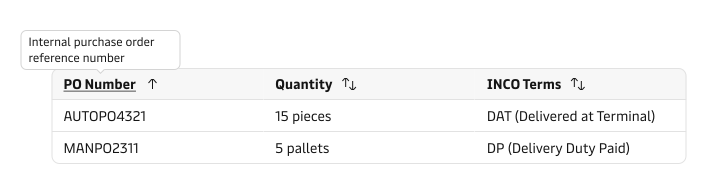
When a header needs additional explanation in order to assist the user, we recommend using the tooltip component. When a column description is provided to the MDS table component, this pattern is automatically applied. Only use tooltips when the labels might be misunderstood or consist of acronyms (e.g. INCO terms).
Header groups
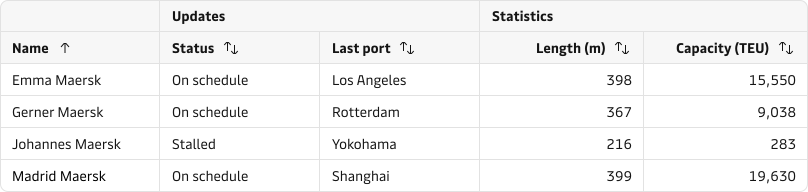
Group headers can help avoid duplication of text labels in the headers and keep the overall table cleaner and easier to scan and read.
Footers
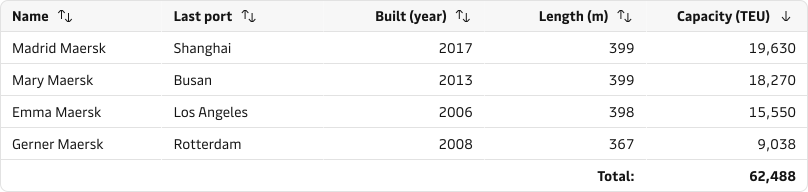
The bottom row can be used as a table footer which is especially useful when numerical data has to be summarised. The footer should clearly state that it represents a summary and be visually distinct from the other rows so that it is clear to the user that its data is different.
Sorting and filtering
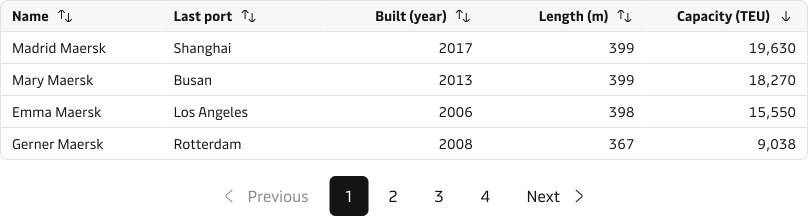
The current table component supports sorting the rows of a table based on a column of choice. The most conventional way of allowing the user to do so is to make the headers clickable and clearly display the active sorting mode with a suffix icon.
We recommend you to check out the full guidelines on search, filter and sorting.
The basic table sorting modes are:
- Default/unsorted (↑↓)
- Alphabetically / numerically in ascending order (↑ 0-9, a-z)
- Alphabetically / numerically in descending order (↓ 9-0, z-a)

Content
Tables present a concise overview of relevant data to make a decision or draw an insight. It is best to apply “less is more” approach to selecting and structuring the data in order to conserve space, reduce visual clutter, and avoid information overload.
Declutter the data
Consider replacing repetitive data entries with conventional (commonly understood) icons, e.g. checkmarks and crosses instead of “Yes” and “No”. Common units can be abbreviated and displayed in the column header instead of being repeated in every cell. Table headers should be kept as short as possible to increase clarity and avoid truncation or wrapping.


Alignment
The table content can be aligned both horizontally and vertically. Applying the right alignment of the content makes it significantly easier to consume and understand the data.
Horizontal alignment
The following conventional pattern significantly improves the scan-ability of tabular data and could even make vertical grid lines obsolete, which gives the table a much cleaner visual expression
As a rule of thumb:
- Left-align text (as well as non-countable numerals such as dates and phone numbers)
- Right-align numbers
- Align headings with data
Center-alignment can be appropriate in certain cases, as in the ‘In service’ column below where the cell content consists of icons which are of equal width.

Vertical alignment
By default, each cell’s content is vertically aligned to the middle but can be changed to top or bottom-aligned. Which alignment to choose depends on how much variation there exists between the content of the cells and the row height.
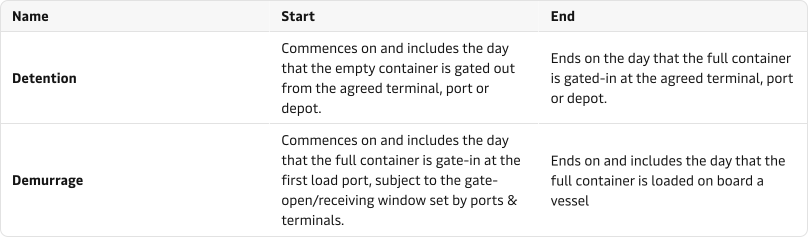
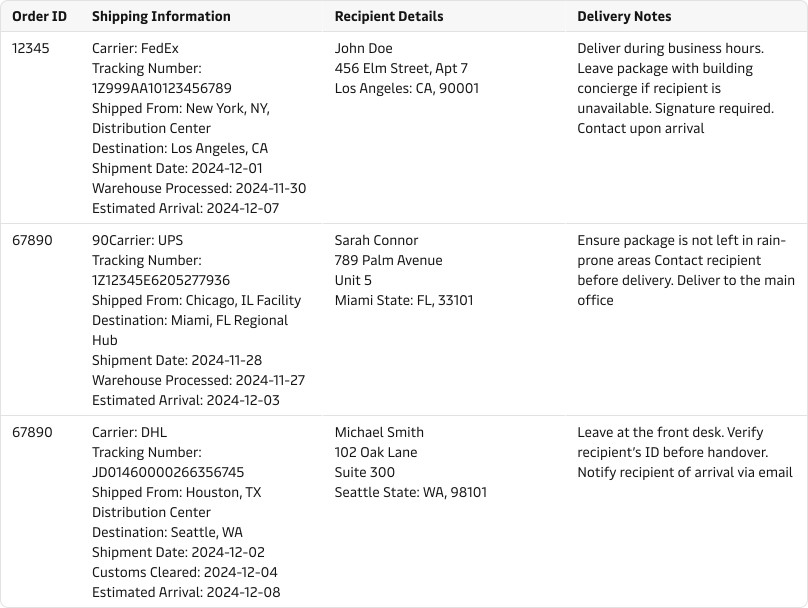
Middle-aligned (centered)
Use vertical middle alignment when the content in a row only varies slightly up to 3 lines.
Top-aligned
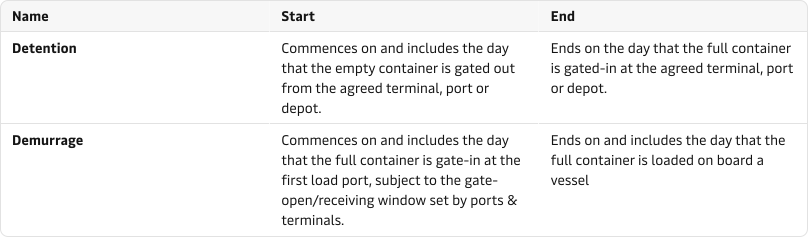
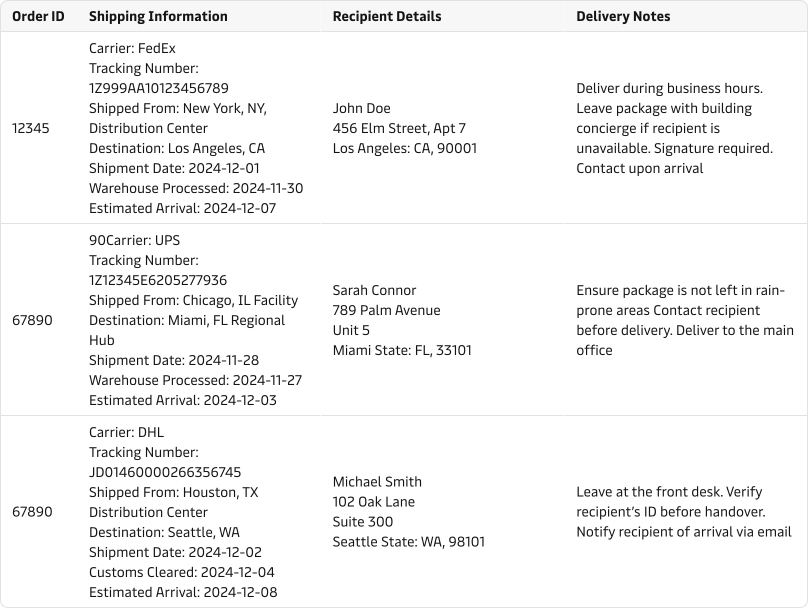
Use top alignment when the content in a row varies more than 3-4 lines.
Bottom-aligned
In most cases, it doesn’t make sense to align cell content vertically to the bottom. When we align to the bottom we may risk that the content is hidden away e.g. by being chopped by the browser viewport. This is especially true when we are dealing with multi-line cell content and when there is a bigger variation in the length of the content between the cells within the row.
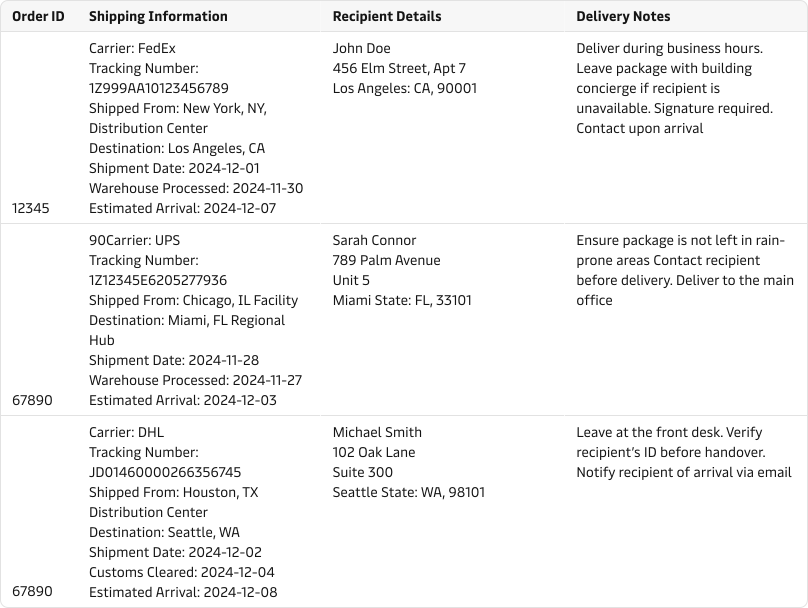
Colspan and rowspan
Sometimes you might want to merge multiple cells across rows or columns. In such cases, you use the colspan and rowspan. For example, you might need a data description that spans over multiple columns or a data label that spans multiple rows.
Example of colspan
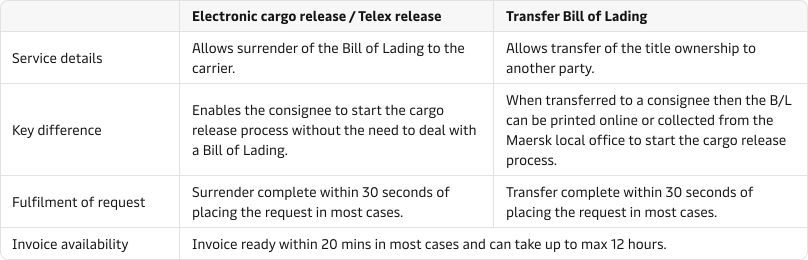
Use the Header Groups in cases where you want to group multiple columns under one category.
Example of rowspan
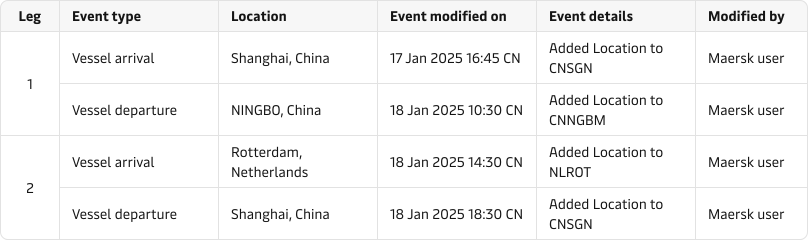
Both colspan and rowspan help improve table structure, readability, and presentation, making them essential for a well-formatted HTML table.
Missing cell content
Display a dash (-) when a cell contains no data to let the user know that the content was loaded.
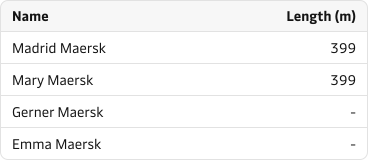
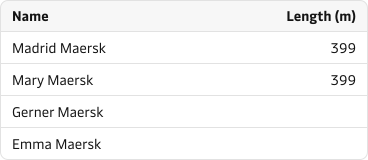
Cell content overflow
If a cell contains too much data to be displayed in a single line the text should wrap (increasing the height of the entire row). In certain cases it may be desirable to truncate the text instead – but this comes with the risk of hiding valuable information from the user and requires implementing an alternative means for the user to access the full text string (e.g. a tooltip). Read more in the truncation guidelines.
Large data sets
Tables with large set of data can be difficult to display in the available screen space.
The main risk of showing tables with overflow (due to data abundance and/or screen size) is that the user loses their overview. One way of mitigating this problem is to make the header row and/or first column sticky, thus allowing the user to view the context of the data anywhere in the table.
Horizontal scroll
When the table columns can not fit in the available screen space, allow the user to scroll horizontally to see the excess columns. It is simple, scalable and conventional solution. When the table has too many columns all potential solutions to handle them have drawbacks.
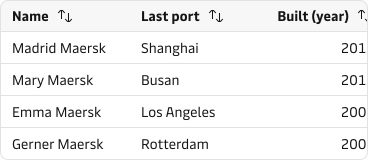
Importance first
Arrange columns in order of importance, typically left to right. This will allow the user to quickly scan and compare the most important attributes of the data entries. This is especially valuable on narrow screens where the right-most columns will be hidden from the view port.
An exception to this rule of thumb is when two or more columns of unequal importance has a tight logical connection, e.g. ‘departure time’ and ‘arrival time’.
Combine columns to conserve space
To save horizontal space some columns with closely related data can be combined by adding the second attribute as a subtext below the first.
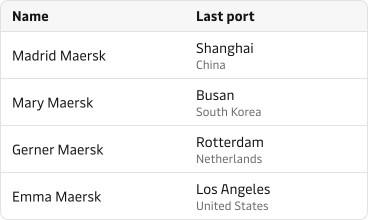
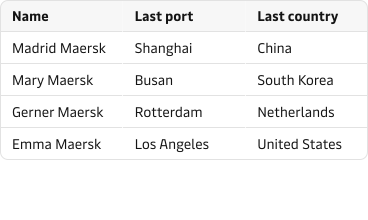
Consider the context and what the user will need in it. Combining columns conserves space but at the same time can reduce the user ability to scan and compare the table data.
Expandable rows
Use expandable rows to add and display simple supplementary information to a table row.
Best practice
- Use to display supplementary information under a table row.
- Expanded content should be organised and easy to read and scan.
- Use headings, bullet points, or tables to present the information in a structured way.
- Use a side panel or modal in cases where the content takes up a lot of space.
- Maintain context by allowing the user to see the original row and its contents
- Keep row expansion to 1 level - further levels will increase the chances of information overload.
Expandable rows are ideal to show details about aggregated numbers and how they are derived when the user wants to drill deeper into the information.
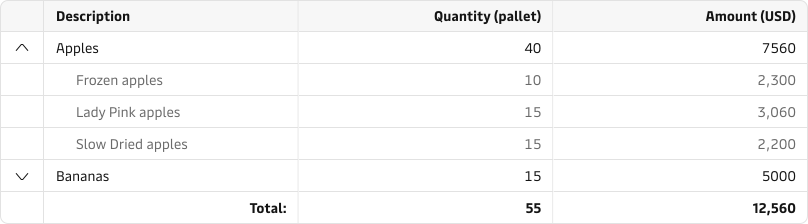
Expandable rows are suitable for displaying simple and well-grouped lists so it does not overload the interface and cause information overload for the user.
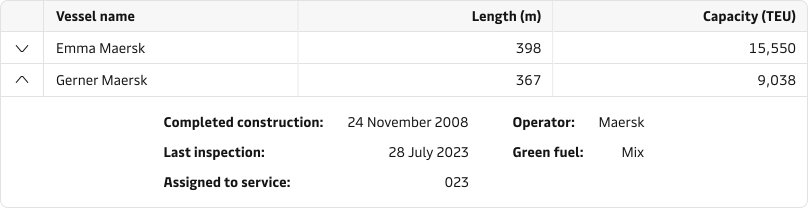
Complex supplementary information
When the supplementary information to a table row requires complex interactions or is large in volume it is better to consider using alternative patterns to disclose it. For example, a side panel or a modal to view and interact with the information are good alternatives. It will help shift the user focus from the table content to the complex supplementary information when it is required. This will help reduce cognitive load while maintaining the context.
Expanding multiple rows at the same time
Consider how large is the content of each expanded row and if it takes up more than 50% of the available screen space. If that’s the case, avoiding using batch expansion as a pattern. Consider opting for a modal or aside panel to disclose the supplementary information.
Pagination
When there are too many rows for the user to get an overview of on a single page, split the rows up into pages and allow the user to navigate between them with a pagination control. Be aware that there are alternative ways of splitting rows into consumable chunks and if you are dealing with a substantial amount of rows (i.e. more than 200) a more advanced pagination control might be necessary. Depending on the context, the pagination can be placed above, below or both above and below the table.
States
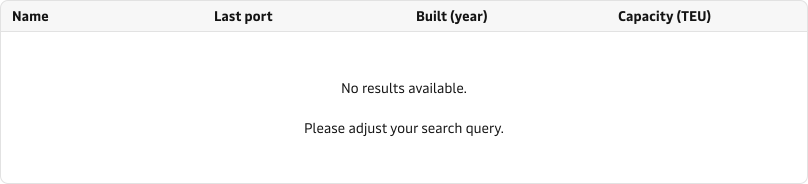
When showing different states of the table it is recommended to keep the table headers visible so the user knows what data is expected to be loaded in the context.
Empty state
Consider using an empty state when the table needs to be populated either manually or by an external source (e.g. file import).

Loading
When data takes more than 1 second to load show a loading state for the table to let the user know content is being loaded. The more accurate information about the loading and progress you can display the better.

No results state
When data is not available either due to too narrow search and filtering criteria or another reason, make sure to communicate the reason and provide a way for the user to recover from the dead end.
Error and Warning state
In cases where there is an API problem or data can’t be loaded from the server, it should be clearly communicated via the Notification component that can be shown instead of the table rows.

Styling options
Visual dividers and other forms of table decoration should be kept at a minimum in order to make the table less busy and easier to digest.
Grid lines
Horizontal grid lines visually separate the rows from each other and help the user scan along a row from start to finish. These are the most basic form of table decoration and should be applied by default since they serve as useful guides for reading the table.
Vertical grid lines visually separate the columns from each other and help the user compare the same data across multiple rows. However, for the most part these are not necessary if the data is strictly aligned, because the alignment itself serves as a visual separation. Whereas avoiding a spreadsheet-like expression is desirable for basic data tables it is conventional and serves a purpose for large/advanced data grids.


Row highlight on hover
Another way of distinguishing rows from one another is to highlight a single one with a slightly different background colour when it is hovered by the user’s mouse cursor. This way the user gets to focus in on a single row of interest at a time without being overwhelmed by other elements of table decoration. This approach comes without the risk of table clutter but is unfortunately not useful on touch devices.

Zebra stripes
If a table is exceptionally wide it can be useful to allow the user to distinguish between rows be giving every other row a slightly different background colour. However, this adds to the visual clutter and might cause contrast issues or visually collide with other elements of the table. So before applying this style to a table, consider the alternatives for row distinction (e.g. horizontal grid lines, row highlight on hover) and carefully weigh the pro against the cons.

Accessibility
Best practices
- Include a header
- Use a simple table structure
- Provide a caption (or alt text) for the table
- Avoid empty cells
- Avoid using tables for layout purposes
- If the table contains (many) interactive elements use a grid instead
Read more about the criteria for accessibility in the accessibility guidelines.
Use a grid for interactive elements
The cells of a basic table are not focusable or selectable so the table is not included in the tabular sequence of the page unless it has sorting controls in the header.
If a basic table contains (many) interactive elements (e.g. if each row has a checkbox for selection) the experience of tabbing through the page via keyboard or screenreader will become repetitive and cumbersome. In that case it is preferable to use a grid, since that allows the user to navigate between cells using the arrow keys.