File Upload
Best practice
- Use the file upload when the user needs to upload one or more files.
- The drag-and-drop variant also allows the user to choose file(s) like the default.
- Use the Legend to commuicate the purpose of the file upload.
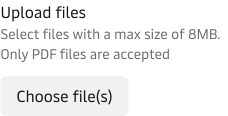
- Use the Hint to communicate more details e.g. file size and format requirements.
- Avoid placing the file upload inside a modal since files are stacked vertically.
- Use each file’s hint text to communicate additional information about the file.
Default vs. Drag-and-drop
In most cases, the drag-and-drop variant is the File Upload you need, since it allows for both drag-and-drop and selection of files.
If you want to keep it simple you can also choose to use the default variant, which only allows the user to select one or more files – not drag-and-drop.
Specify file requirements
Use the hint text to communicate the file requirements, so it is clear which maximum file size and formats the file upload accepts. This way we avoid users wasting time trying to upload files that will not be accepted.
Loading states
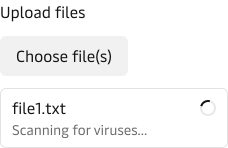
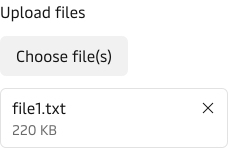
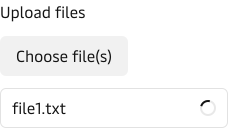
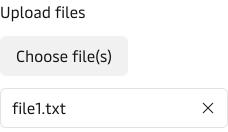
Each selected file has a loading spinner icon while it is being uploaded. When the file is successfully uploaded the icon will change to a close icon.
Validation
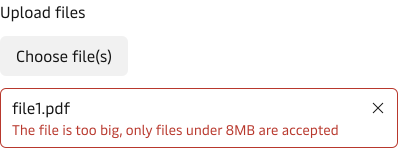
When a file cannot be uploaded successfully the system will return an error and the file will changed to the invalid state and an error message will be shown. The error message should communicate what went wrong and how to resolve the issue.
File hint text
Each file has a hint text that can be used to provide additional information about the file e.g. uploading progress or file metadata.