Drawer
Best practice
- Use drawers for menus, settings, filters and contextual options.
- Position the drawer consistently across the website or application.
- Don’t overload the drawer, keep the content simple and focused.
- Don’t use a drawer as the primary navigation on desktop.
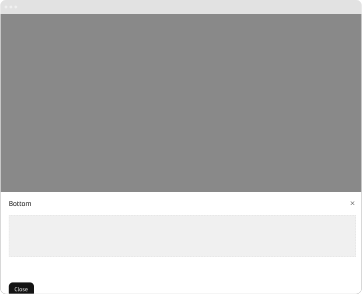
- Avoid using the bottom drawer on desktop.
Usage
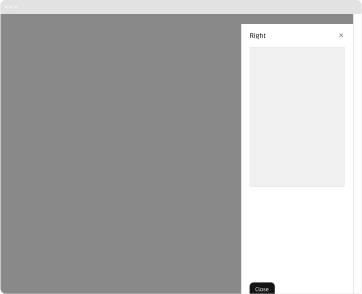
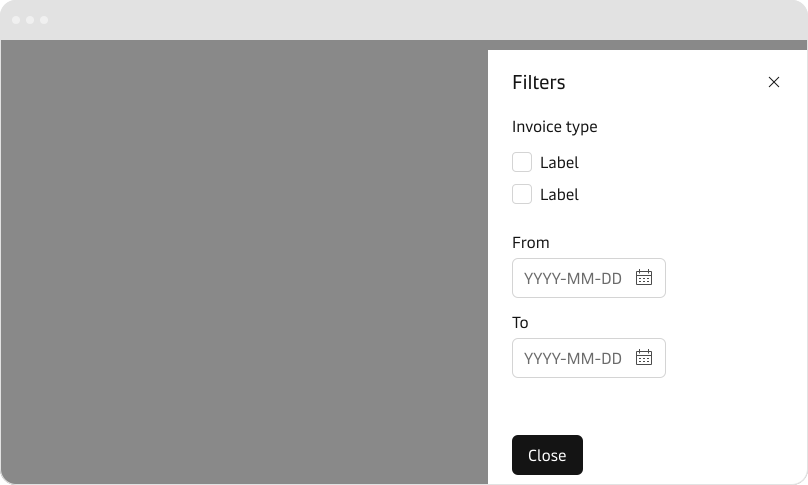
Use the drawer for secondary content and functionality that do not have to be visible at all times. The most common use cases are menus, settings, filters, contextual actions and tools. Drawers can also be used for temporary content such as notifications and chats.
Drawers help save space and create a cleaner UI by hiding secondary information. Avoid using drawers for primary navigation in desktop applications if space allows for a more permanent sidebar or header navigation.
The drawer should not be confused with a persistent sidebar. The drawer is an overlay that can be opened and closed, whereas a sidebar is persistent part of the page. A sidebar component is on our backlog for Q1 2025 as a part of a wider page layout work.
Placement
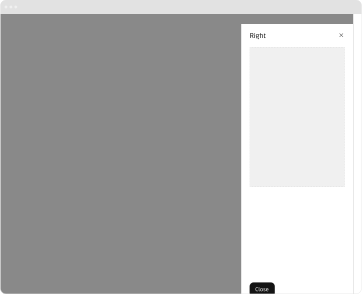
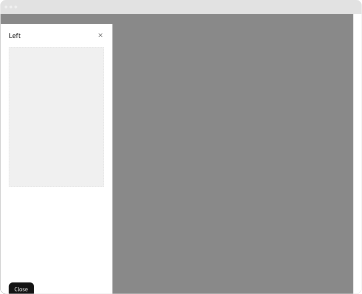
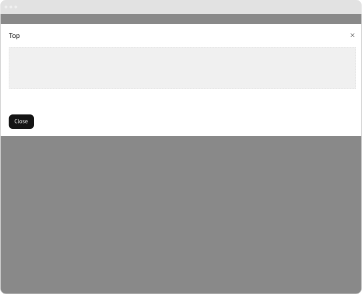
Drawers are typically placed on the left or right side of the screen, but can also be placed in the top or the bottom of the screen.
Ensure that the same type of drawer is placed consistently across the website or application.
Content
Ensure the content inside the drawer is well-organized and scannable. Use headings, dividers, or sections to break up content logically. Only include the information necessary for the task at hand e.g., menu items, filters.
Non-modal drawer
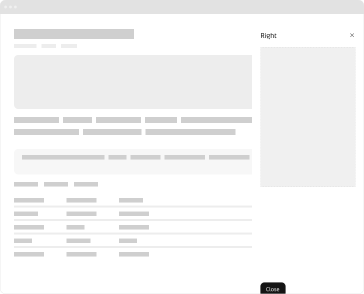
By default, the drawer is in modal state, which means that while the drawer is opened it has a backdrop and the user cannot interact with the rest of the page. In some cases, the user still needs to be able to interact with the rest of the page, in such cases the drawer can be made non-modal.