Select
Best practice
- Use a Select to select one option from a long list of mutually exclusive options.
- The Select field and the options popover should have the same width.
- When grouping options, ensure the groups are logical and helpful to the user.
- The label should describe what the user is selecting. Check the Label Guidelines.
- Use the help text to provide additional context and explanation.
- Use Radio Buttons, if there are six options or fewer, unless it negatively impacts the UI layout.
- If there are more than 10-15 options, then activate the search functionality.
- Use the Typeahead, instead, if the list of options is very long.
Implementations
The Maersk Design System offers two single-select components, “Select” and “Select Native”.
We recommend using the Select whenever possible, as it increases visual consistency and behaviour across browsers.
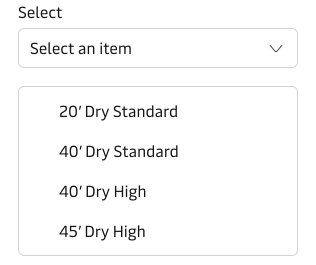
- Options are visually aligned with the MDS themes and rendered consistently across browsers.
- Greater flexibility with option group headers and dividers supported.
- Rendered using
<mc-select />.
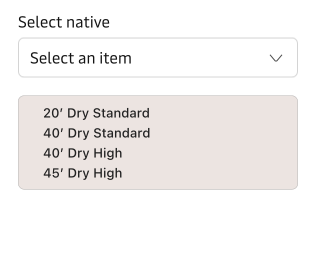
- Options are rendered natively by the browser
- Options are not visually aligned with the MDS themes and maybe rendered differently across browsers.
- Rendered using
<mc-native-select />.
Search
In cases where the list of options is longer than 10-15, it is recommended to activate the search functionality in the drop-down list. The longer the list the more difficult it becomes for the user to scan the options, but already when the list is between 10-15 options, the ability scan slows down. A search can in these cases be a great way to speed up the process of finding the right option.
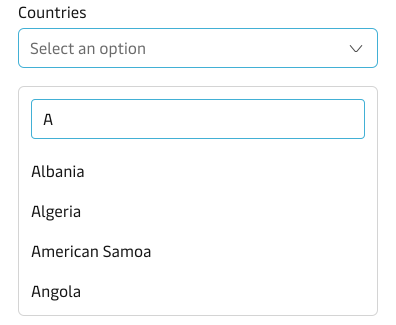
Both components allow users to search and select an option from a list, but they serve different use cases and user behaviour. Read about the difference in the Selection Components Guidelines.
Grouping options
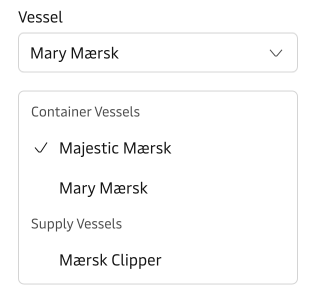
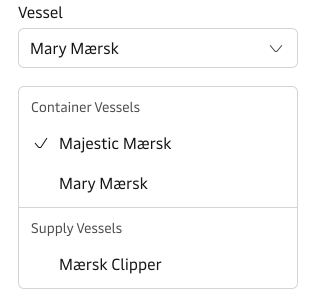
The Select allows for grouping the selectable options. You can use headlines and horizontal dividers to group selectable options. These groups will give users a more logical browsing experience and better scannability.
Clearing a selection
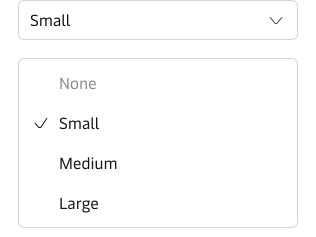
The Select offers two ways of clearing an already-made selection. The default way displays an additional selectable option on top of the list that removes the selection and returns the Select input to its default preselected state.
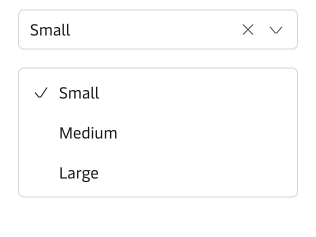
The alternative way displays an icon action in the input field. It allows users to interact with it by clicking, touching, or using the backspace key on the keyboard to remove an existing selection.
Label
By default, the component has a top-positioned label. It is possible to change the position of the label to be left-positioned. We recommend that you use the top-positioned labels wherever possible, especially in forms. You can read more about why we recommend top-positioned labels in our Form Guidelines.
For information on how to write good and consistent labels - see our Label Guidelines.
Hint text & error state
Please see the Input component for details on Hint Text and Error State.
Vanity variant
The component supports the “vanity” style variant.
Please read more about this variant in our Form Guidelines.