Selection components
There is a summary of recommendations provided at the end of this guideline.
Selection components allow users to select one or more option from a list of values. Each selection component has advantages and disadvantages depending on the context and total options available.
There are two types of selection components:
- Selection controls
Display selectable predefined values that do not require the user to type a character or a phrase to find an option. - Selection inputs
Allow for richer interaction that can help narrow the available options for selection.
This guideline provides help on choosing the most suitable selection component based on context.
Selection controls
Selection controls are ideal when presenting six or fewer options that must be exposed and visible to the user upfront.
Keeping the number of options to six or fewer helps to reduce that cognitive load when using selection controls.
Radio Group
Use Radio Groups to select a single item from two or more mutually exclusive options.
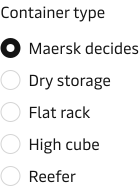
Use the Select or Typeahead components when users are required to select a single item from more than six options.
Do not use Radio Groups to turn “on” and “off” features or to control how content is presented e.g. switching between a list or card view.
In these instances, consider using Switch or Segmented control.
Checkbox and Checkbox Group
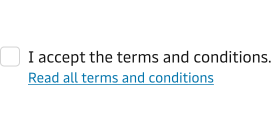
Use a single Checkbox to ask users to agree or confirm specific conditions.
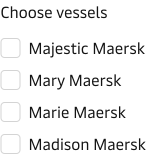
Use a Checkbox Group when one or more logically related options are selectable.
Use the Switch Group if users need to set features “on” and “off”.
Use the Multi-Select or Typeahead components when users are required to select a single item from more than six options.
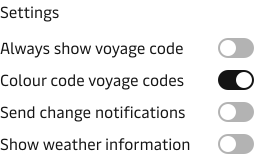
Switch and Switch Group
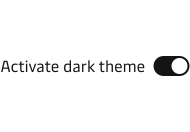
Use the single Switch component when the selection is applied immediately, for example, choosing a dark theme.
Use the Switch Group if users need to turn features “on” and “off” or applying settings etc.
Segmented Control
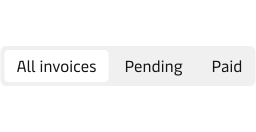
Use the Segmented Control to help users consume complex information in smaller chunks.
The Segmented Control is ideal for filtering content or changing the presentation of the same content to tailor for different users’ mental models.
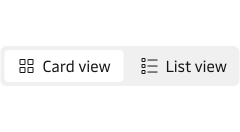
Use the Segmented Control for changing between display views, for example, moving between card or list based views.
Button Group
Use the Button Group as an alternative to the Radio Group or Checkbox Group to allow for a more aesthetic and compact appearance that can reduce cognitive load in complex forms.
The Button Group is not a standard form component. If used in a form context, it should be used consistently as a pattern within the same form to avoid potentially confusing people.
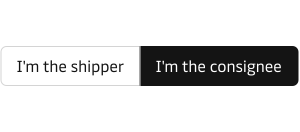
The Segmented Control is more suitable.
Selection inputs
Selection inputs are ideal if the user can select from seven or more options and often allow users to match options based on keyboard input. Selection inputs can reduce clutter on dense interfaces, which results in less cognitive load on the user.
Select
Use the Select Component to choose one option from a predefined list of items when you have more than six options. If there are more than 10-15 options, then activate the search functionality.
At the price of hiding all the selectable options from the immediate view, the Select component keeps the UI less cluttered, especially for complex and dense applications.
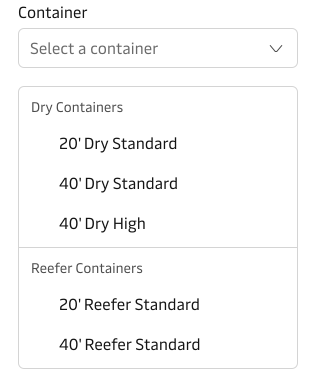
Typeahead
Use the Typeahead to choose one option from a very long list. The Typeahead is ideal for finding and selecting one option from thousands of available values, such as locations or commodity codes.
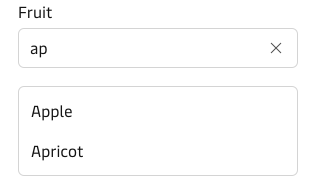
Both components allow users to search and filter a list of options, but they differ in how users interact with the list and how results are presented.
The Select displays the full list of options in a dropdown, allowing users to browse and select. A search field helps narrow down the list, but users can still scroll through all available options. Best for medium to long lists where the user may benefit from browsing through the list. For example, selecting a country from a list.
The Typeahead component filters and displays a limited number of results (usually 10–15) based on the user’s input. Best for very large and complex datasets where the users are unlikely to browse the full set, but instead rely on search to find a specific item. For example, searching for a port in a global database.
Multi-Select
Use the Multi-Select to choose one or multiple options from a predefined list of items when you have more than six options. If there are more than 10-15 options, then activate the search functionality.
At the price of hiding all the selectable options from the immediate view, the Multi-Select component keeps the UI less cluttered whilst simultaneuously providing a summary of the total number of selected options.
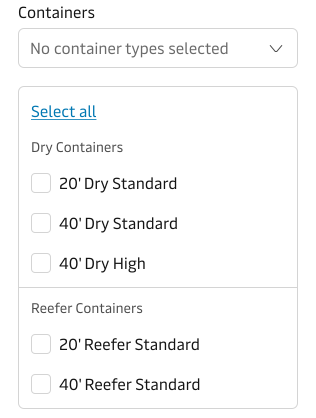
Typeahead Multi-Select
Use the Typeahead Multi-Select to choose multiple options from a very large list. The Typeahead Multi-Select is ideal for finding and selecting options from thousands of available values, such as locations or commodity codes.
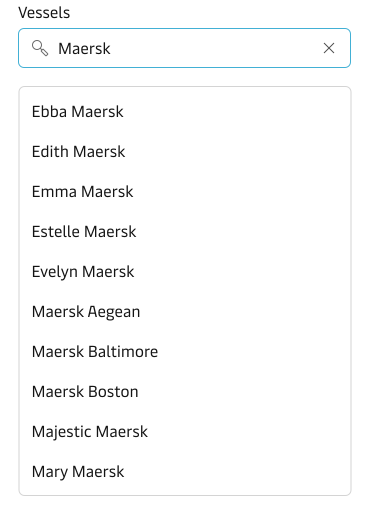
Both components allow users to search and select multiple options from a list, but they serve different use cases and user behaviours.
The Typeahead Multi-Select dynamically filters and displays a limited set of results (typically 10–15) based on the user’s input. It is good for very large or complex datasets where users are unlikely to browse the full list of options and instead rely on search to find specific items. For example, selecting ports from a global database.
The Multi-Select component displays the full list of options, allowing users to browse and select multiple options. The search field helps filter the list, but users can still scroll through all available options. Is good for medium to long lists where users may want to explore the full range of options before making a selection. For example, selecting countries from a predefined list.
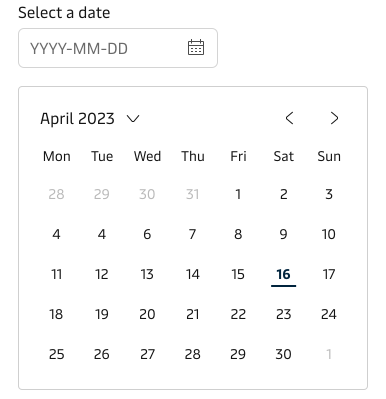
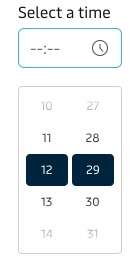
Input Date and Input Time
Use the Input Date and Input Time when users are required to select a specific date/time value from calendar.
When to use a default selection
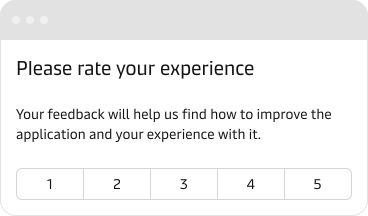
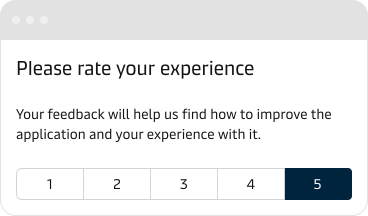
Applying default selection to selection inputs and controls can be time-saving for users. Default selection can also mislead or bias people if it is the wrong default, misread or ignored due to already being selected.
For example, if you ask people to rate your product experience, you should not preselect a value for the choice they have to make.
Use default selection when the available data is pointing with significant certainty to what the default option should be.
For example, when requesting a phone country code and previous user input has already given you the information that suggests which code should be preselected.
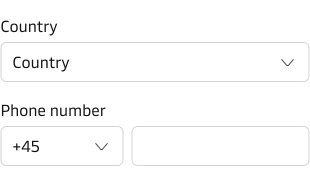
For example, selecting a location country might not mean the user has an active phone number based in the same country.
If no existing data exists (e.g. tracking, historical, or similar) to back up the default selected choice, then it is best to have no selection or a “None” option. Doing this avoids misleading users to submit information that was not chosen consciously.
Do not provide a default selected value were unbiased data is to be collected.
Summary of recommendations
Fewer than seven options
Use selection controls.
| Use-case | Recommendation |
|---|---|
| Select one option from a list | Radio Group or Button Group |
| Select one or more option from a list | Checkbox Group or Button Group |
Seven options or more
Use selection inputs.
| Use-case | Recommendation |
|---|---|
| Select one option from a list | Select |
| Select one option from a very large list | Typeahead |
| Select one or more options from a list | Multi-Select |
| Select one or more options from a very large list | Typeahead Multi-Select |
Other
| Use-case | Recommendation |
|---|---|
| Accepting terms and conditions | Checkbox |
| Turn features on/off that take immediate effect | Switch or Switch Group |
| Selecting different views or filters of the same content | Segmented Control |
| Selecting date and/or time | Input Date and Input Time |
| Navigating between different types of content within the same page | Tabs |