Disabled and readonly states
We recommend that you only use disabled and readonly state when UI components are in an intermediate state e.g. when a system dependency or any prerequisites exist. Never as a default state.
For example, do not disabled the submit button in a form per default, but could be done after the user has clicked the button, so that we avoid the form being submitted multiple times.
In most cases, use the component in the enabled state, so that people can interact with them and get their job done.
Difference between disabled and readonly
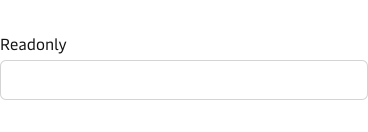
Where enabled/disabled state specifies if a UI component allows user interaction or not, then readonly specifies, if the user can edit the value or not.
For example, the user can still select and copy the value/text of a readonly component, but cannot change the value. Readonly components are focusable and screen readers can still read the value.
A disabled component is entirely disabled. This means that it is not focusable and is therefore also not accessible for screen readers and will not be submitted in a form.

Disabled state
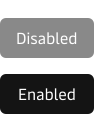
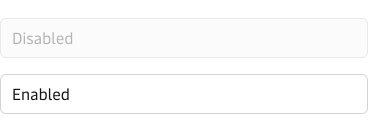
The disabled state communicates to the user that a component exists, but that it is currently unavailable. For example, the submit button can be disabled after the user has clicked the button this way we prevent the form from being submitted multiple times. Read more about forms in our form guidelines.
In most cases, we should use the enabled state of the components, so that people can interact with them and get their job done. However, a component can be disabled for a certain amount of time e.g. if a system dependency exists or due to pre-requisites. In these cases, it is important to still show the component and let the user know it exists.
In disabled state:
- No interaction with the component is possible
- The component will not have a tab stop
- The component will not be focusable
- The value cannot be submitted in a form
Readonly state
Use the readonly state, in cases where you want the user to be able to see and copy the entered values, but not be able to edit them. A common use case is system settings where a user might not have the right to change certain settings but should still be able to see what has been applied. Using readonly inputs makes it possible for screen readers to read them.
In readonly state:
- The input will have a tab stop
- The input will be focusable
- The input is readable by screen readers
- The input can be submitted in a form