Figma Make is a new AI tool from Figma that can generate real interactive designs from text prompts, images, or Figma design files. You need a full Figma seat to access it. Like most AI tools, it’s evolving quickly, so what I share here reflects my experience today, the tool might look very different in a few months.
Getting started is simple: create a new Figma Make file and type your first prompt. And AI handles the rest. As with most prompt-based tools, the more specific you are, the better the result.
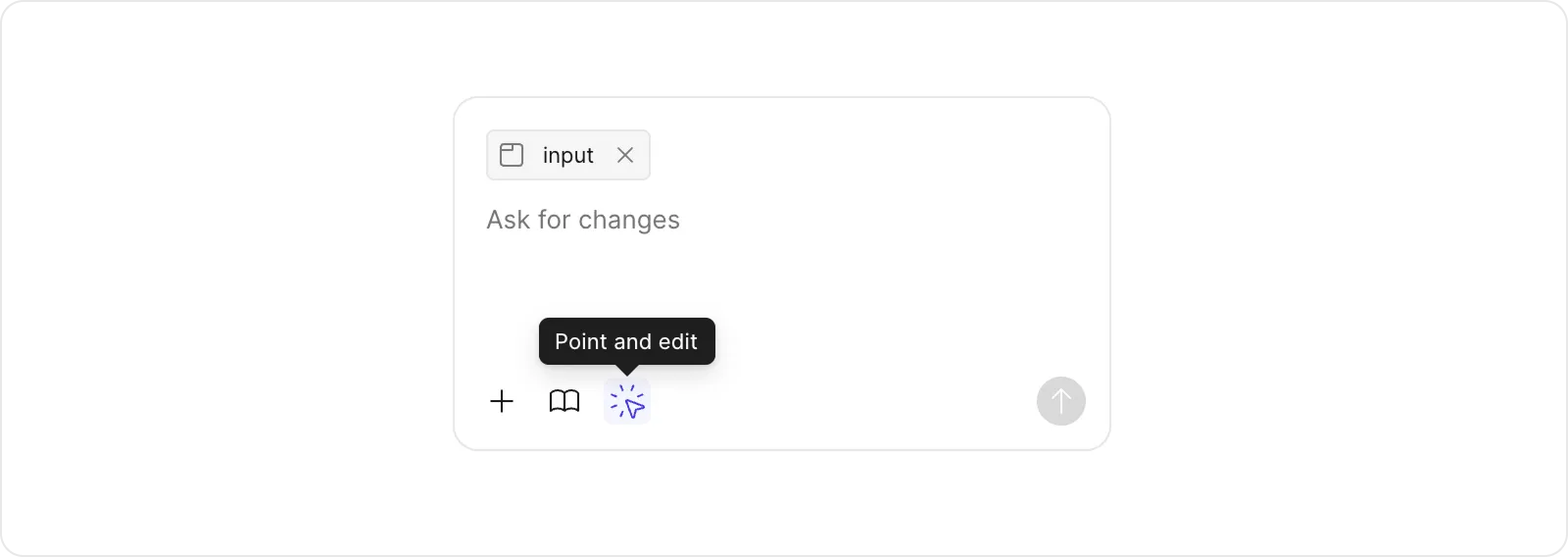
You can refine your output with follow-up prompts or updates. Figma even added a point and edit feature, letting you focus your prompt on a specific area of the page, super handy if you only want to tweak one card instead of all of them as an example.
When creating a new Make file, you have three ways to start:
- Blank canvas + prompts
- Image + prompts
- Design file + prompts
Let’s take a look at each.
Blank canvas + prompts
As the name suggests, this starts from scratch. You can select a library (like MDS: UI) so Figma Make can reference components, colours, and styles from it, but beyond that, the outcome depends entirely on how detailed your prompt is.
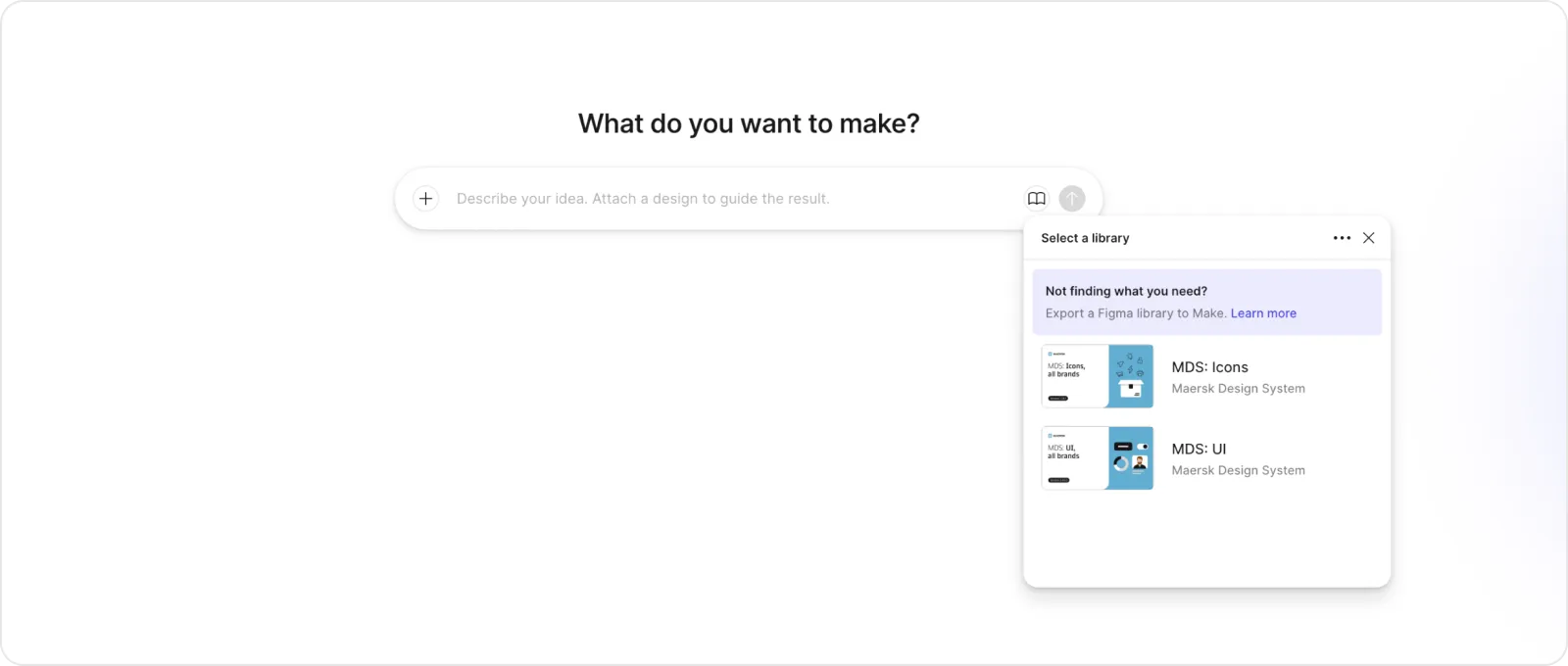
Image + prompts
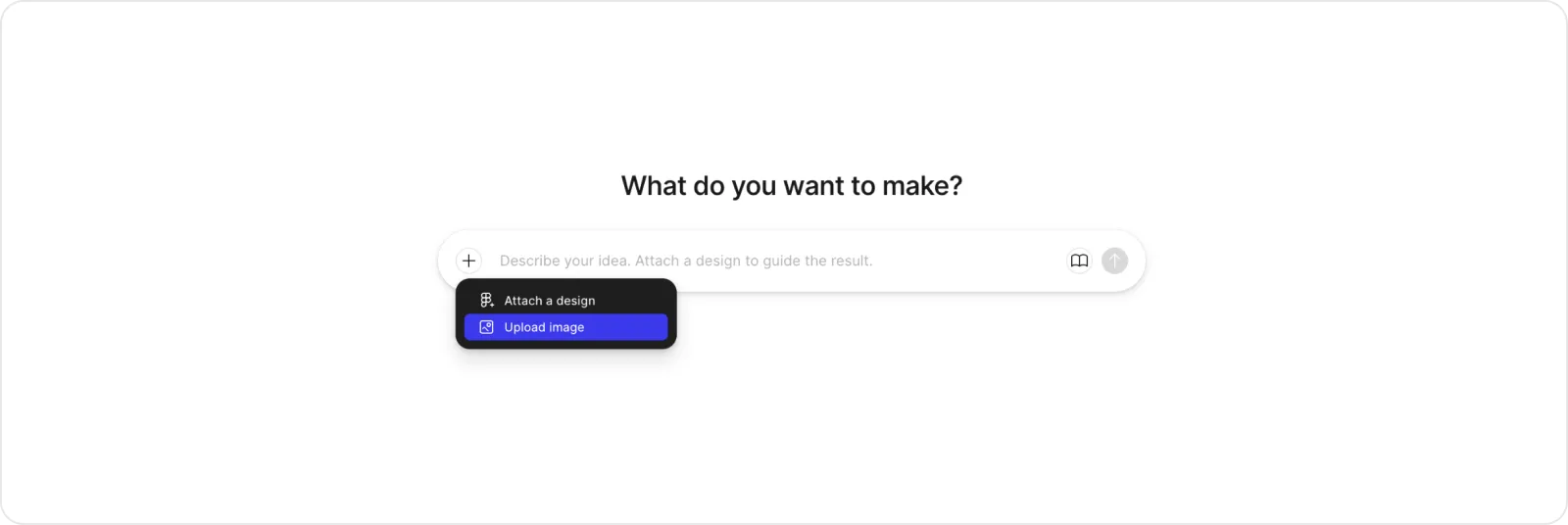
You can also support your prompt with an image. This gives Figma Make visual context for layout, proportions, and styling. It’s especially useful if you want to simplify your text prompts while still guiding the visual direction.
Design file + prompts
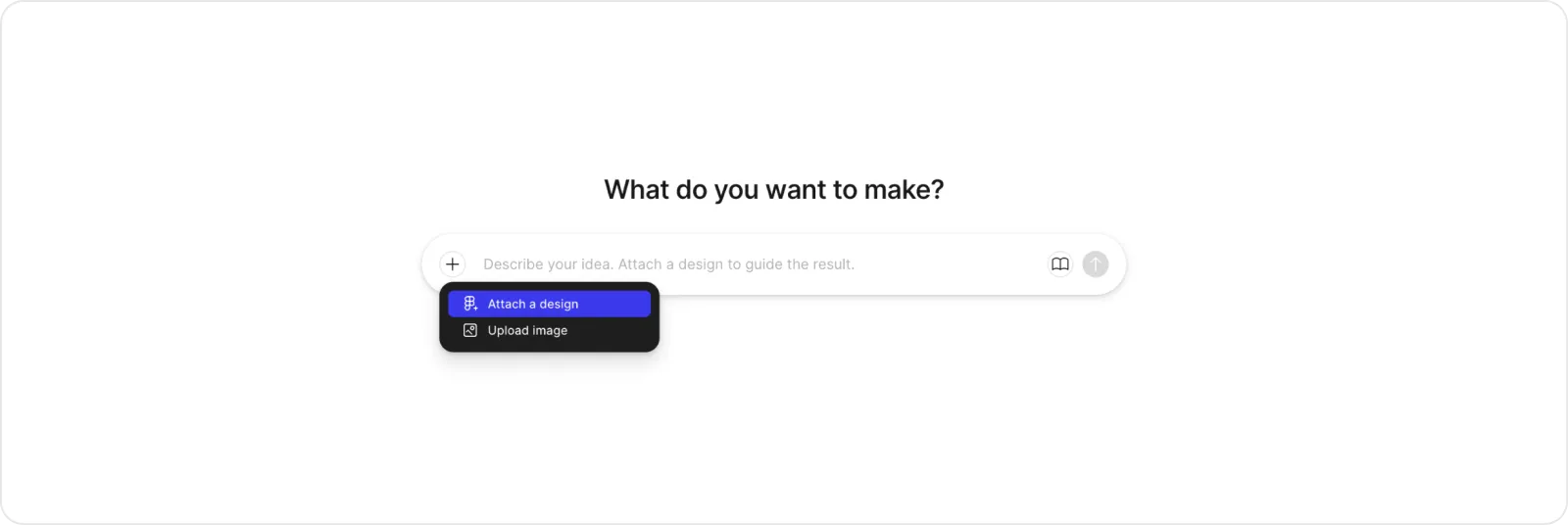
This option lets you start from an existing Figma Design file, which gives Figma Make a direct visual reference for layout and component styling. If you already have a Figma file, this will likely be your preferred starting point, no need to export to JPG or PNG first.
Personally, this approach works best for me. It allows Figma Make to pull details from my existing design files, giving me results that are much closer to what I expect. It also tends to render elements like icons more accurately than the image-based option.
Libraries and globals.css
For all three starting points, you can select one library that’s been exported for Figma Make use. Both MDS: UI and MDS: Icons are supported. Since you can only choose one, I recommend selecting MDS: UI if Maersk styling are needed, as it includes the essential colours, components, and tokens.
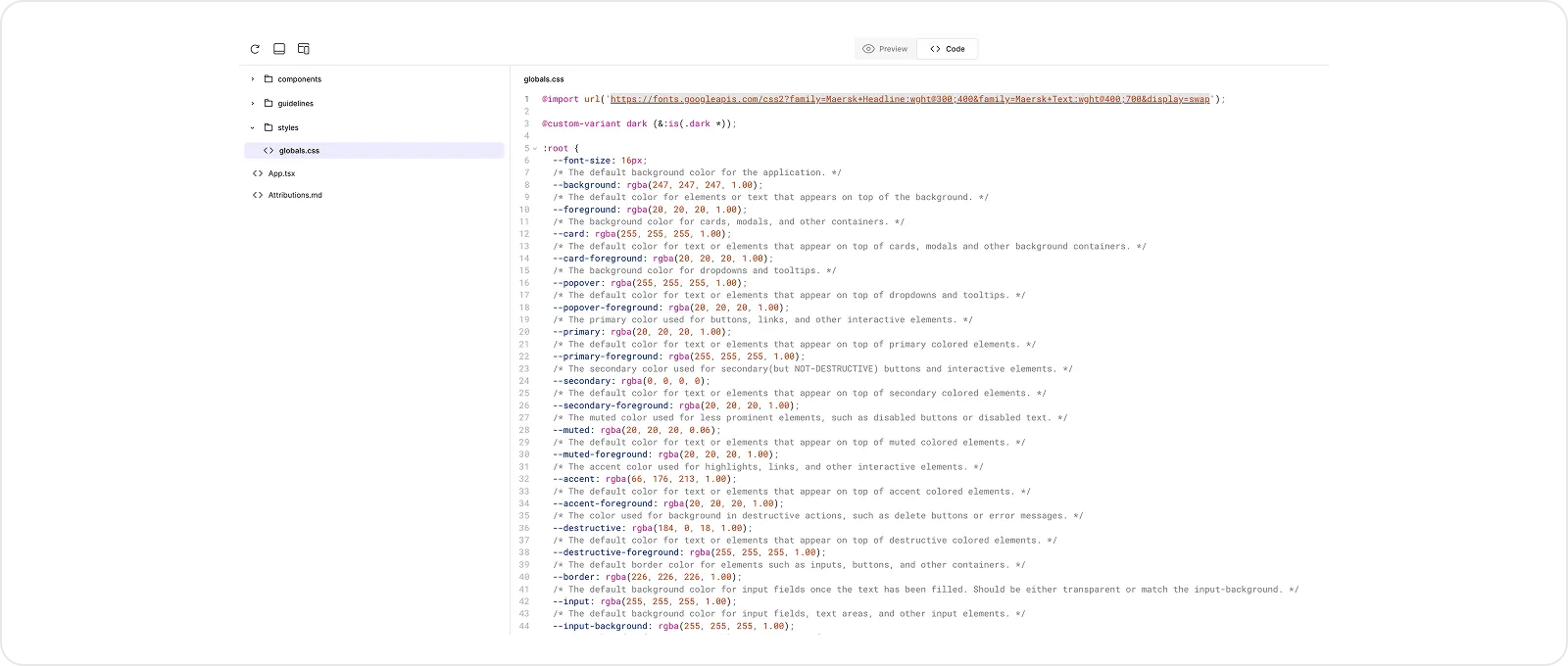
Each Figma Make file includes a globals.css file with fonts, colours, and base styles. If you’ve selected a library, then Figma Make will try to pull values from it to populate globals.css.
Potential, but not there yet
In my experience, even when selecting the MDS: UI library and referencing a design file, the results can still be inconsistent. Figma Make often struggles to reproduce layouts or components as intended, and you’ll likely need to do quite a bit of prompting to refine them.
I’ve tested it with both full-page designs and smaller UI sections. Where I think Figma Make currently shines is when creating smaller elements or sections, places where you can narrow your scope. That’s where it’s easiest to get results that both look right and behave as expected.
The point and edit feature does help when updates to specific sections are needed, but I still get the best results from focusing on a single component, feature or section rather than an entire page.
It’s also important to note that Figma Make doesn’t yet use actual design tokens or components from our libraries. It treats them as references and then tries to recreate them, often imperfectly. Even if the visual result looks right, the underlying code doesn’t include real library assets. Something you need to be aware of.
Right now, I see Figma Make as a tool for experimentation, testing ideas, exploring interactions, and quickly building variations and wireframes. But it’s not ready for production work yet.
Moving designs back to Figma Design
You can “copy design” from Figma Make and paste it into a regular Figma Design file. This can be handy if you want to keep the final layout in a Design file after testing several ideas in Make.
In my tests, it added frames and auto layout fairly well, but since everything in Make is built from scratch, nothing is linked to the actual MDS components or tokens. You’ll still need to reapply those manually afterward.
Maybe one day, Figma Make will support this and not just reference them.

Final thoughts
Figma Make does show huge potential. Right now, I see it best suited for exploring smaller elements and sections or validating ideas quickly in a live prototype or wireframe environment. But I don’t see it making anything production-ready yet.
One of our goals with MDS is to deliver greater consistency and build a single source of truth. If you select the same reference library in Figma Make, different users may still see different results, since it rebuilds everything from scratch each time.
As mentioned, both MDS: UI and MDS: Icons are available in Figma Make, allowing it to reference colours, components, and icons from those libraries. However, choosing one of the MDS libraries won’t make your generated designs production-ready, or necessarily give you the same result each time.
Keeping your work in a wireframe or generic style within Figma Make, without using MDS libraries, is often a smart approach. It signals that the design is not yet production-ready. Later, you’ll likely need to recreate it in Figma Design using the correct brand colours, styles and MDS components, ensuring consistency and readiness for implementation.
It’s going be interesting to see how Figma Make evolves over the coming months and years.